How to Install Android Apps on Your Chromebook
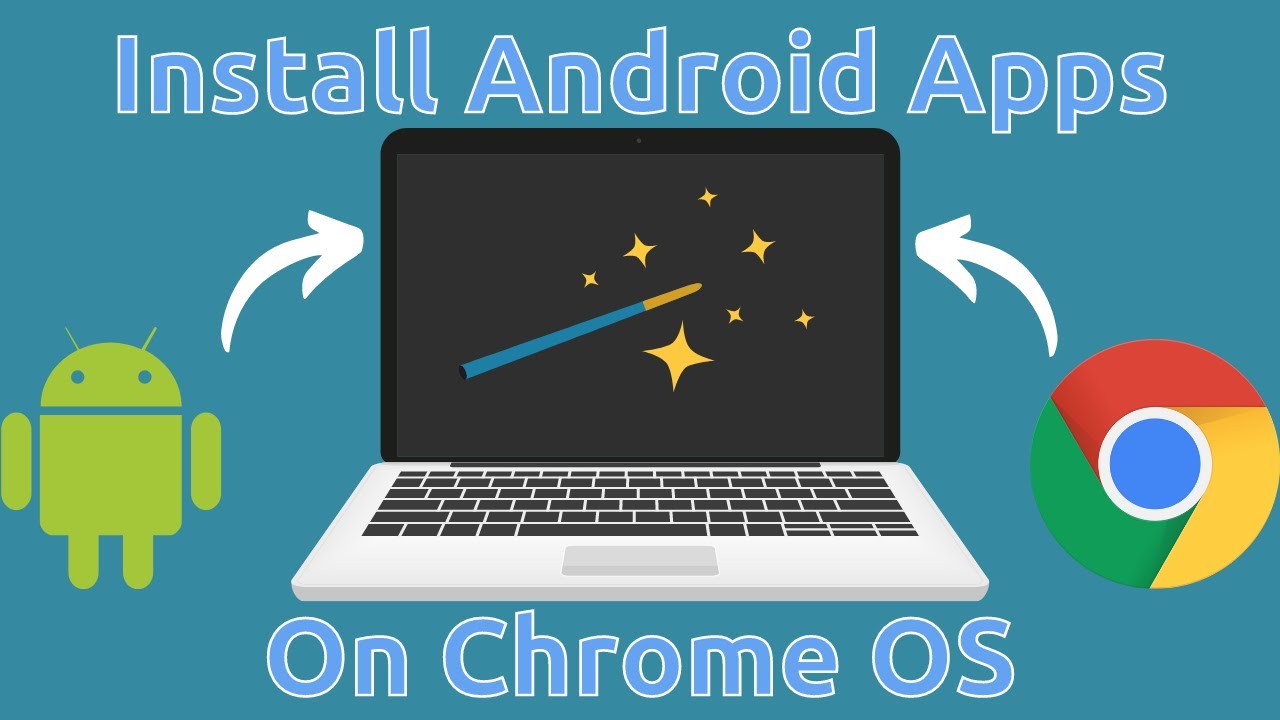
If you own a Chromebook, you're not limited to just web apps and Chrome extensions. Most Chrome OS devices can run Android apps directly through the Google Play Store, which opens up thousands of additional apps for productivity, entertainment, and everything in between.
Here's how to get Android apps running on your Chromebook and what to expect when you do.
Which Chromebooks Support Android Apps?
All Chrome OS devices released after 2019 support Android apps. Many models from before 2019 work too, but not all of them. Google maintains a list of supported devices if you have an older Chromebook and want to check compatibility.
The feature works the same across all supported devices, so once you know yours is compatible, the setup process is straightforward.
Update Chrome OS First
Before installing Android apps, make sure you're running the latest version of Chrome OS. This ensures compatibility and reduces potential issues.
Here's how to check for updates:
- Open Settings
- Select "About Chrome OS" in the bottom left
- Click "Check for updates"
If an update is available, Chrome OS will download and install it. You'll need to restart your Chromebook to complete the update.
Enable the Google Play Store
Once your system is updated, you need to enable the Google Play Store app if it isn't already active on your device.
- Open Settings
- Select "Apps" from the left sidebar
- Look for "Google Play Store" on the right side
- If you see a "Turn on" button, click it
If there's no "Turn on" button, the Play Store is already installed and you can skip to the next section.
After clicking "Turn on," you'll see Google's terms of service. Read through them and click "More" to continue. On the next screen, choose your preferences for app suggestions and other features, then select "Accept."
The Play Store app will now install on your Chromebook.
Download Your First Android App
Once the Play Store finishes installing, it should open automatically. If it doesn't, you can find it in your app launcher:
- Click the launcher icon in the lower left corner of your screen
- Click the up arrow to open the app drawer
- Select "Play Store"
From here, the experience works just like it does on an Android phone or tablet. Search for the app you want, select it, and click "Install."
After installation completes, you can launch the app immediately by clicking "Open," or find it later in your app drawer alongside your other Chrome OS apps.
What to Expect from Android Apps on Chrome OS
Not all Android apps behave the same way on a Chromebook. Some apps are optimized for larger screens and will fill your display nicely, making full use of the available space. These apps generally provide a good experience on Chrome OS.
Other apps are only optimized for phone screens. When you run these on a Chromebook, they'll only fill part of your screen, appearing in a vertical phone-sized window. The app will still work fine, but it won't look as polished as apps designed with tablets and laptops in mind.
You won't know which category an app falls into until you try it, but in general, popular productivity apps and games tend to have better large-screen support than niche apps.
Managing Your Android Apps
Once installed, Android apps appear in your Chrome OS app drawer alongside native Chrome apps and web shortcuts. You can:
- Pin them to your shelf for quick access
- Organize them in folders
- Uninstall them through the Play Store or by right-clicking the app icon
- Update them automatically or manually through the Play Store
Android apps on Chrome OS have access to your Chromebook's files, though you may need to grant permissions the first time an app tries to access your camera, microphone, or storage.
The Bottom Line
Adding Android app support transforms what you can do with a Chromebook. Whether you need specific productivity tools, want to play mobile games on a bigger screen, or just prefer certain Android apps over their web alternatives, the Play Store integration makes it all possible.
The setup takes just a few minutes, and once it's done, installing Android apps works exactly like it does on any Android device. Just remember that not every app will look perfect on a larger screen, but the functionality will be there.
If you have a Chromebook from 2019 or later, there's no reason not to enable this feature and see what additional apps might be useful for how you use your device.
Watch the Video
Prefer watching over reading? Check out the full video this article is based on:
Recommended Products
Amazon Associate Disclaimer
What The Tech is an Amazon Associate and earns revenue based on qualifying Amazon affiliate purchases.
Recommended products are not sponsored by Amazon. Prices shown are subject to change on Amazon.