How to Connect Your Android Phone to Your Chromebook Using Phone Hub
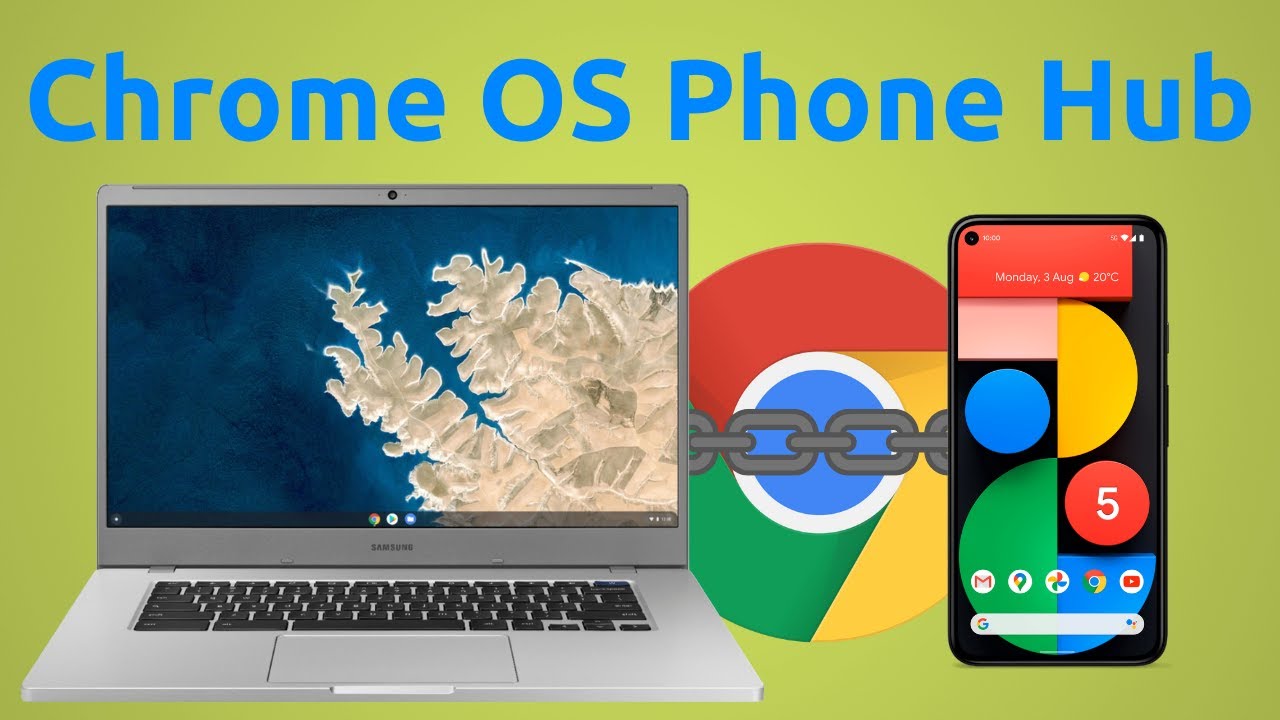
Phone Hub is a Chrome OS feature that connects your Android phone to your Chromebook. Once set up, you can respond to text messages, check your phone's battery life and signal strength, enable your phone's hotspot, and view recent browser tabs without touching your phone.
Google released Phone Hub in March 2021 as part of Chrome OS's 10th anniversary update. If you've been looking for a way to keep your phone in your bag while working on your Chromebook, this is it.
Before You Start
You'll need to make sure you're running the latest version of Chrome OS. Here's how to check:
- Open Settings
- Select "About Chrome OS" at the bottom left
- Click "Check for updates"
If an update is available, install it before continuing.
Connecting Your Phone to Your Chromebook
First, you need to establish a connection between your devices.
- Open Settings and select "Connected devices" from the left menu
- Look at the top of the screen under "Connected devices" to see if your phone is already connected
- If your phone isn't connected, select "Set up"
Your phone should appear automatically if both devices are on the same Wi-Fi network. Once it shows up:
- Select "Accept and continue" at the bottom right
- Enter your account password when prompted
- Select "Done"
If the password was accepted, you'll see an "All set" message. Select "Done" again.
Enabling Phone Hub Features
Now that your phone is connected, you can choose which Phone Hub features to enable.
- Click the right arrow next to your connected phone
- You'll see a list of Phone Hub options
- Toggle on the features you want to use
Setting Up Notifications
To receive phone notifications on your Chromebook, you'll need to grant access from your phone:
- Enable notifications in the Phone Hub settings
- A pop-up will tell you to grant access from your phone
- Select "Get started"
- On your phone, select "Turn on notifications"
- Choose "Google Play services"
- Toggle the switch to allow notification access
- Press "Allow" on the pop-up
- Select "Done" on your Chromebook
Using Phone Hub
Once setup is complete, you'll see a new Phone Hub icon in your Chromebook's dock. Click it to open the Phone Hub menu.
From here, you can:
- Check battery life and signal strength at a glance
- Silence your phone without picking it up
- Locate your phone if you've misplaced it
- Enable your phone's hotspot to use cellular data on your Chromebook (if your carrier supports it)
- View and open recent Chrome tabs from your phone
The hotspot feature is particularly useful when you're working somewhere without Wi-Fi. Instead of tethering through your phone's settings, you can turn it on directly from your Chromebook.
The Bottom Line
Phone Hub makes it easier to work on your Chromebook without constantly switching to your phone. The setup process takes just a few minutes, and once it's done, you'll have quick access to the most important phone features right from your Chromebook.
The notification syncing is especially helpful if you keep your phone in another room or in your bag. You won't miss important messages, and you can respond without breaking your workflow.
If you want to take this integration further, you can also set up Messages for Web to send full text messages from your Chromebook's browser.
Watch the Video
Prefer watching over reading? Check out the full video this article is based on:
Recommended Products
Amazon Associate Disclaimer
What The Tech is an Amazon Associate and earns revenue based on qualifying Amazon affiliate purchases.
Recommended products are not sponsored by Amazon. Prices shown are subject to change on Amazon.